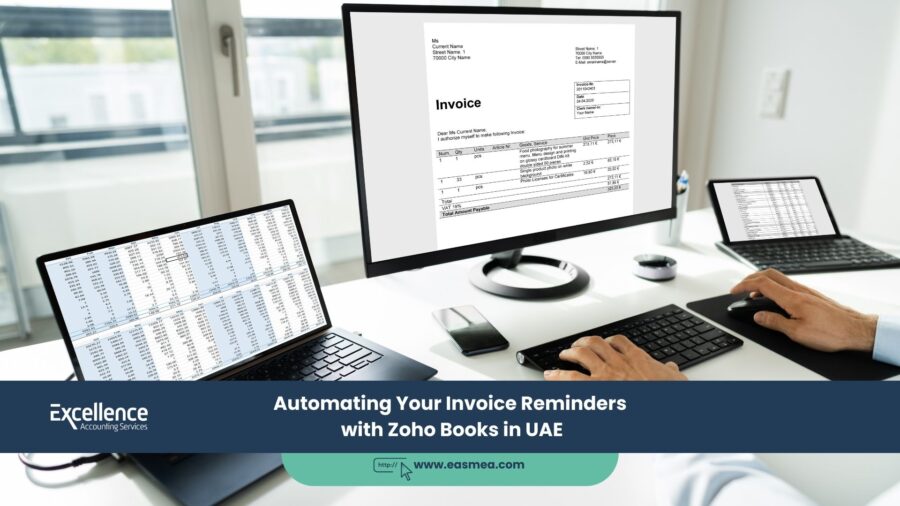
Automating Your Invoice Reminders with Zoho Books in UAE: A Guide to Getting Paid on Time
For any SME in the UAE, the time between sending an invoice and receiving payment is a critical period. A long payment cycle can strain cash flow, hinder growth, and consume valuable administrative time that could be better spent serving customers. One of the most time-consuming and often uncomfortable tasks in this cycle is chasing late payments. Manually tracking due dates and sending follow-up emails is inefficient and prone to human error—it’s easy for an overdue invoice to slip through the cracks.
- Automating Your Invoice Reminders with Zoho Books in UAE: A Guide to Getting Paid on Time
- The Problem: The Pitfalls of Manual Follow-Ups
- How to Set Up Automated Reminders in Zoho Books: A Step-by-Step Guide
- Master Your Cash Flow with Excellence Accounting Services (EAS)
- Frequently Asked Questions (FAQs)
- Stop Chasing. Start Automating.
This is where technology offers a powerful solution. Modern cloud accounting platforms like **Zoho Books** are designed to do more than just record transactions; they are built to automate and streamline your entire financial workflow. One of its most impactful features for improving cash flow is the ability to set up **automated invoice reminders**. This simple yet powerful tool can transform your collections process from a manual, reactive chore into a systematic, proactive, and professional operation.
This guide will walk you through the importance of automated reminders and provide a step-by-step overview of how to set them up in Zoho Books. By leveraging this feature, you can reduce late payments, improve your cash flow, and reclaim your time.
Key Takeaways
- Automation Saves Time: Manually chasing payments is a significant administrative burden. Automating reminders frees up your time for more strategic tasks.
- Consistency Improves Collections: Automated reminders ensure that every overdue invoice is followed up on consistently and professionally, without fail.
- Maintain Professional Relationships: Automated emails are polite, systematic, and less confrontational than manual follow-up calls, helping to preserve good client relationships.
- Fully Customizable: Zoho Books allows you to customize the message, tone, and timing of your reminders to fit your brand and your relationship with your clients.
- It’s a Key Part of a Healthy Cash Flow Cycle: Combining automated reminders with professional invoices and online payment gateways creates a powerful system for getting paid faster. Expert Zoho Books implementation can help you set this up.
The Problem: The Pitfalls of Manual Follow-Ups
Relying on a manual system for chasing payments is fraught with problems:
- It’s Inconsistent: When you get busy, following up on a small overdue invoice can easily be forgotten.
- It’s Uncomfortable: Many business owners dislike the confrontational nature of chasing payments, leading to procrastination.
- It’s Inefficient: The time spent checking your records, finding the invoice, and drafting a follow-up email is time that could be spent on revenue-generating activities.
- It Can Seem Unprofessional: Haphazard or emotional follow-ups can damage client relationships. A systematic, professional approach is always better.
Late payments are often not malicious; they are a result of your invoice being at the bottom of a busy client’s to-do list. A polite, automated reminder is the most effective way to bring it back to the top.
How to Set Up Automated Reminders in Zoho Books: A Step-by-Step Guide
Setting up automated reminders in Zoho Books is a straightforward process that can be done in minutes. This is a core part of effective accounts receivable management.
Step 1: Navigate to the Reminders Settings
- Log in to your Zoho Books account.
- Click on the **Settings** icon (the gear icon) in the top right corner.
- Under “Reminders & Notifications,” select **Reminders**.
Step 2: Enable and Configure Your Reminders
You will see a screen where you can turn on and customize the automated reminders for overdue invoices.
- Turn on the toggle** for “Automated reminders for overdue invoices.”
- You will see several default reminders (e.g., 1, 3, 5 days after due date). You can edit these or create new ones by clicking **+ Add New Reminder**.
- Customize the Timing: For each reminder, you can set when it should be sent—either a certain number of days *before* or *after* the invoice due date. A best practice is to set up a multi-stage workflow.
Step 3: Craft Your Email Templates
This is where you control the message. For each reminder, you can customize the email template.
- Edit the Subject and Body: Click on “Edit Template” for each reminder. You can change the subject line and the body of the email to match your company’s tone of voice.
- Use Placeholders: Zoho Books uses “placeholders” (like `{CustomerName}` or `{InvoiceAmount}`) to automatically insert the correct information into each email. This personalizes the message.
- Create a Workflow:
- Pre-Reminder (e.g., 3 days before due): A gentle, friendly reminder. “Hi {CustomerName}, this is just a friendly reminder that invoice {InvoiceNumber} for {InvoiceAmount} is due in 3 days.”
- Due Date Reminder: A polite notification. “Hi {CustomerName}, just a note to say that invoice {InvoiceNumber} is due for payment today.”
- Overdue Reminder (e.g., 7 days after due): Slightly more firm, but still professional. “Hi {CustomerName}, our records show that invoice {InvoiceNumber} is now 7 days overdue. Please let us know if you have any questions.”
Step 4: Save and Activate
Once you are happy with your reminder schedule and templates, simply save your settings. Zoho Books will now automatically monitor your invoice due dates and send out these reminders on your behalf. You can turn off reminders for specific customers if needed.
Master Your Cash Flow with Excellence Accounting Services (EAS)
Automated reminders are a powerful tool, but they are most effective as part of a comprehensive financial workflow. EAS provides expert guidance to help you leverage the full power of Zoho Books.
- Zoho Books Optimization: We provide expert Zoho Books consultancy, ensuring that features like automated reminders, payment gateways, and recurring invoices are set up and optimized for your specific business needs.
- Cash Flow Management Strategy: As part of our CFO services, we help you develop a holistic cash flow management strategy, from invoicing best practices to effective credit control policies.
- Outsourced Accounting: Let us handle the details. Our accounting and bookkeeping team can manage your entire invoicing and collections cycle within Zoho Books, ensuring timely billing and follow-up.
Frequently Asked Questions (FAQs)
Not if you customize the templates correctly. By using a friendly, professional tone and personalizing the emails with placeholders, the reminders come across as helpful notifications rather than aggressive demands.
While the main reminder workflow is set globally, you can manually disable automated reminders for specific customers who may have unique payment terms or relationships with you.
Yes. As soon as you record a payment against an invoice in Zoho Books, it is removed from the overdue list, and any future scheduled reminders for that specific invoice are automatically cancelled.
A combination is best. A single, polite reminder a few days *before* the due date is a great proactive measure that often prevents the invoice from becoming overdue in the first place. This should be followed by a sequence of reminders if the invoice does become overdue.
Yes. Zoho Books keeps a detailed history for each invoice. You can see the exact date and time each reminder email was sent to the client, providing a clear audit trail of your follow-up activities.
Automated reminders should handle the first 80-90% of your follow-ups. If an invoice becomes significantly overdue (e.g., 30+ days) despite multiple automated reminders, that is the time to pick up the phone for a personal call. The automation frees you up to focus your manual efforts on the most problematic accounts.
No. Automated invoice reminders are a standard feature included in all paid plans of Zoho Books.
Always start politely and professionally. “This is a friendly reminder…” or “Just a gentle follow-up on…” works well. The goal is to be helpful, not accusatory.
Yes, and you absolutely should. The email templates automatically include a link to the invoice and a “Pay Now” button (if you have payment gateways enabled). This makes it incredibly easy for the client to view the invoice and pay it immediately.
The invoice history in Zoho Books provides a log of when emails were sent. While email delivery can occasionally fail, this feature gives you a strong record to show that you have made multiple attempts to communicate, which can be useful in any potential disputes.
Conclusion: Automate the Process, Not the Relationship
Automating your invoice reminders is one of the highest-impact changes you can make to improve your cash flow and reduce administrative stress. By letting Zoho Books handle the consistent, professional follow-ups, you are not replacing your client relationships; you are freeing yourself from the awkward task of chasing payments so you can focus on strengthening those relationships through excellent service. It’s a simple, powerful way to work smarter, not harder.
Stop Chasing. Start Automating.
Contact Excellence Accounting Services for an expert consultation on setting up and optimizing your Zoho Books account to get you paid faster.